Get help signing in to YouTube
Forgot password
Visit the YouTube account recovery page on your computer or mobile web browser to reset your password.
After you’ve entered your email on the YouTube account recovery page, you’ll be guided through some questions to prove ownership of your account.
If you have a recovery email address or phone number set up, you can use those to recover your account. Otherwise, look for the Verify your identity link to prove account ownership and recover your account.
Forgot email address
If you’re not sure which email address is connected to your YouTube channel, visit the Google Account recovery page and choose I don’t know my username.
You’ll be asked to enter either the recovery email address or phone number you should have entered when signing up. If you never entered a recovery email address or phone number, unfortunately we can’t help look up your Google Account email address.
Can’t sign in with YouTube username
Instead of signing in to your account by entering your YouTube username, enter your full email address. Then, enter the same password you’ve been using to sign in to YouTube.
You’re still signing into the same account as always—you just need to enter the email address on the account instead of your YouTube username.
You may not know it, but every time you’ve signed into YouTube since 2011, you’ve been signing into a Google Account—you access YouTube with your Google Account. The password you’ve used to sign in is your Google Account password.
As we integrate services across Google, we can no longer support signing into Google Accounts with YouTube usernames. Instead, you need to sign into YouTube with your Google Account email address (this is often Gmail, but can also be a different domain like Yahoo, Hotmail, etc.).
But I don’t like my Google Account email address! If the email address isn’t Gmail, you can change your email address. Or, you can replace it by adding Gmail to your account. If you already have Gmail, you can add analternate email address to sign in with.
Use a legacy YouTube account (pre-Google YouTube account)
Some older YouTube channels are not part of a Google Account. This is only possible if the channel was created before May 2009 and you haven’t signed in to it since 2011. These are called legacy YouTube channels.
To access these legacy channels, you’ll need to link your channel to a Google Account.
- Sign in to the Google Account you’d like to link with your YouTube channel. If you don’t have a Google Account, it’s easy to create one.
- After you sign in, enter youtube.com/gaia_link in your web browser. Enter your YouTube username and password in the box on the left and select Link these accounts.
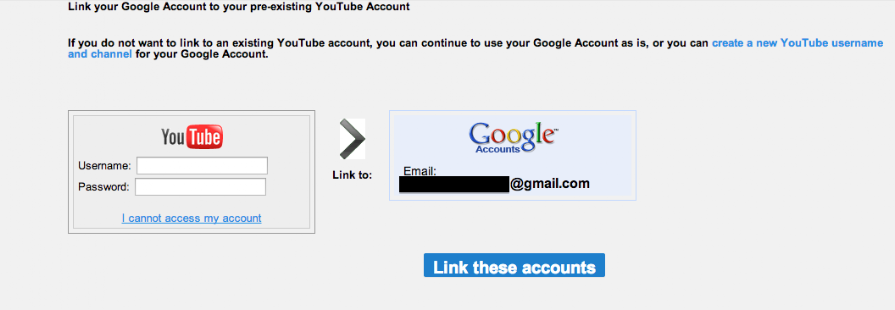
Now, you will use your Google Account email and password to access your YouTube channel.
Delete your YouTube channel
Closing your YouTube channel will delete your data including videos, messages, comments, and your channel. You will not be able to open a new channel with the same URL. Note that deleting a channel is currently not possible on mobile devices.
You have a few options to take down your channel:
- Hide your channel through Google Account settings:
- Go to your Google Account settings.
- Make sure you sign in with your YouTube channel’s Google Account.
- Under Account management, click Remove YouTube content.
- Choose to hide your YouTube channel and content. Be sure to read carefully; some content will be irreversibly deleted.
- You can re-enable your channel later if desired.
- Delete your Google+ profile. This will hide your channel and content unless you restore the profile. This will also allow you to then permanently delete your channel through Google Account settings (mentioned above).
- Delete your entire Google Account.
- Make sure you’re signed in to the channel you want to delete.
- Go to your advanced account settings.
- Click Delete channel. You’ll be asked to re-enter your sign-in details to confirm that you want to delete your channel.
- Note that if your channel is connected to a Google+ page, this will not delete the page. If you want, you candelete the page afterwards.
You may still see thumbnails of your videos on the site as it takes time to update; they will be removed shortly.